Items & equipment
The bag, equipment, shops, repair, the warehouse, trading, booths and item quality.
Your things live in two places: the bag (Items window) and what you wear (Equipment tab of Status).
The bag
Press I or click Items. The bag holds 40 items. It keeps no gaps: when an item leaves, the ones behind it shift forward.
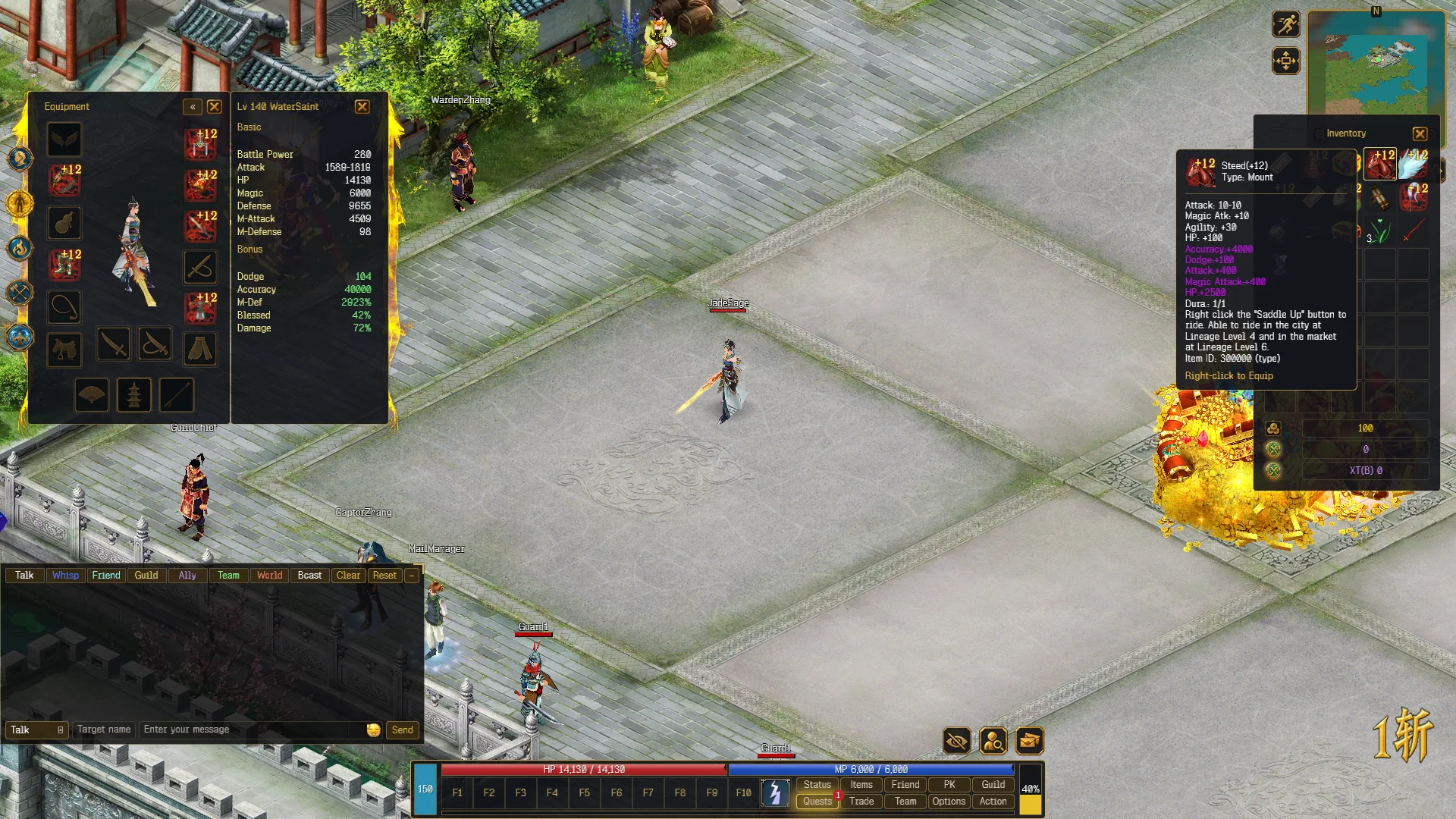
Hover an item for its tooltip. A bag item’s tooltip ends with Right-click to Equip or Right-click to Use.
| To do this | Do this |
|---|---|
| Pick up an item | Left-click it. It follows the cursor |
| Move it | Left-click another bag slot |
| Put it back | Right-click while holding it |
| Use or equip | Right-click it |
| Split a stack | Shift + left-click the stack |
| Drop it on the ground | Left-click the map while holding it |
| Show it in chat | Ctrl + left-click the item |
Items on the ground are picked up with a left-click.
Using items
Right-click a potion or other usable item to use it. Messages you may see:
- Notice: Your HP is full. and Notice: Your MP is full. — nothing is used.
- You cannot use this item on this map.
Equipment
Open Status and the Equipment tab. Right-click an item in the bag to equip it. Double-click or right-click an equipped item to take it off.
If you hold a weapon in your left hand, take it off before changing the right-hand one. The client says Unequip your left-hand weapon first.
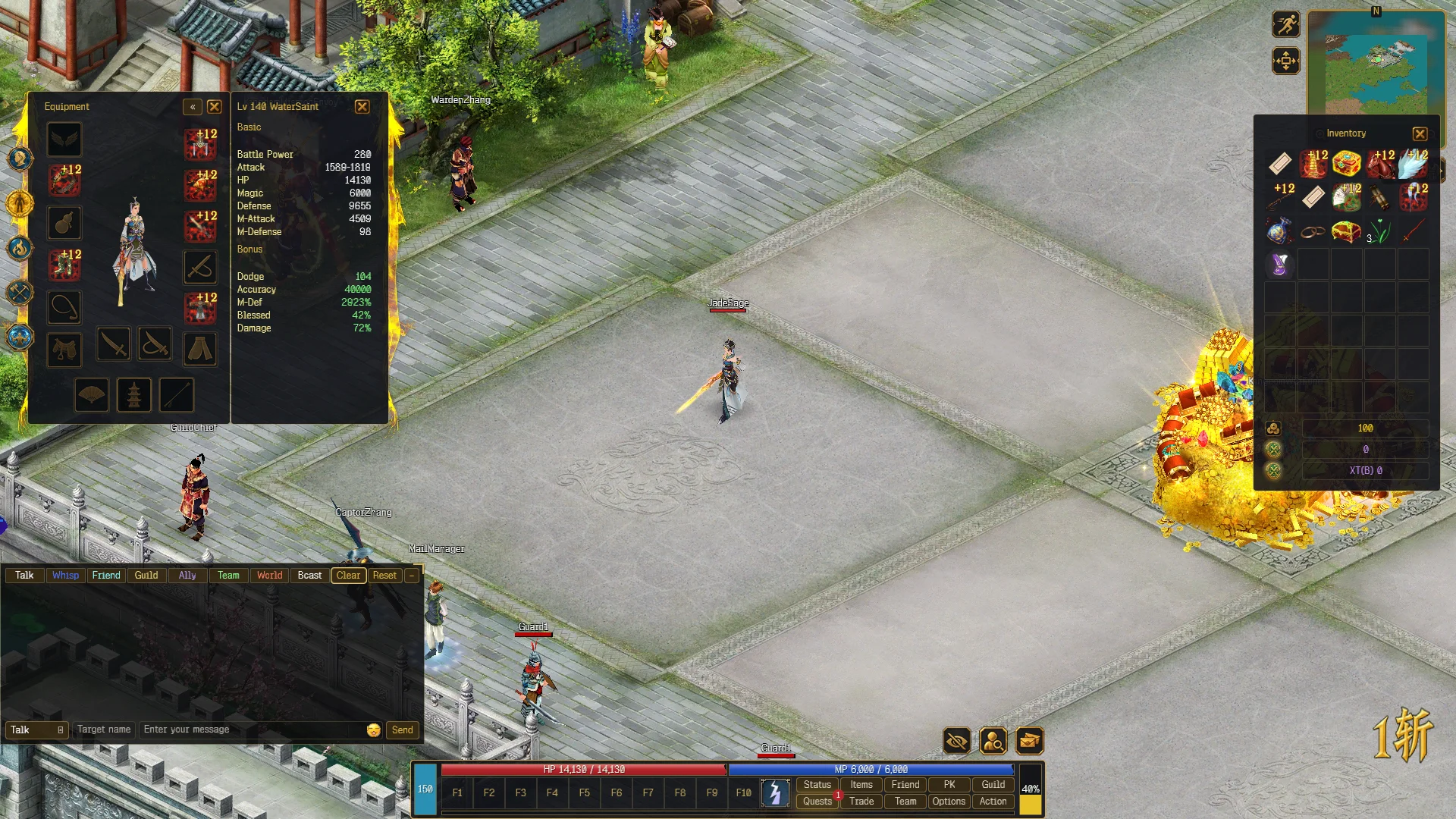
A new character starts with gear already on. See Classes.
Destroying items
Some items are destroyed instead of dropped, for example items bound to your character. Dropping one opens a Destroy item window: This item will be destroyed, not dropped. Are you sure? Confirm and the item is gone.
Quality
Gear comes in five qualities, from lowest to highest: Normal, Refined, Unique, Elite, Super. Higher quality means higher base stats. Hover an item to see its stats.
Shops
Left-click a shop NPC to open the Shop window. See World for where they stand.
- Buy: left-click an item in the shop. Stackable items ask how many you want.
- Sell: drop a bag item onto the Shop window. Valuable items ask for confirmation first. Selling works in Gold shops only.
- Prices show in Gold or XT. The tooltip says which.
- You cannot sell your best item of a type to a shop. The client says The item of the highest battle power of a certain type in your inventory can not be sold to a shop.
Repair
Gear wears down as you fight. The tooltip of a damaged item shows Repair Cost. In the Shop window press Repair, then left-click the item in your bag.
Warehouse
The Warehouseman stores items and gold, so your bag stays light. The window has a Savings field with Deposit and Withdraw for gold.
Trading
Press Trade on the bottom menu, then left-click the player you want to trade with. They get a Trade request and must accept.
- Each side adds items, and optionally Gold or XT.
- Press Ready. When both are ready, press Confirm.
- Trade completed. shows when both confirmed. Cancel stops it at any step.
Booths
Players sell to each other at booths in the Market.
- Sell: click a free ShopFlag and confirm to sit down. Pick up a bag item, click an empty slot in the Shop window and set a price. A booth holds up to 20 items.
- Set Gold or XT, not both. A price is 1–9,900,000,000 Gold or 1–999,999,999 XT.
- Use the Take back icon on a listing to remove it. To change a price, remove the item and list it again.
- Hawk sets a short advertisement over your booth, up to 64 bytes.
- Buy: click another player’s carpet, inspect the item and price, press Buy, then confirm.
- Close Shop with Esc and the booth stays open. Stand up to take it down. You cannot move while seated.
Showing items to others
Ctrl + left-click a bag or equipped item to put a link to it in your chat message. Anyone can left-click the link to inspect the item. Right-click a link to copy it into your own message. See Chat, friends and teams.