
Interface
A tour of the Xirune HUD: bottom bar, minimap, Status, Items, Options, languages, the HUD editor and capture.
This page names what is on screen so the rest of the guides can point at it. For mouse and keyboard, see Controls. For chat, friends and teams, see Chat, friends and teams.
The HUD at a glance
| Where | What |
|---|---|
| Top left | HUD info chips: Server, Ping, FPS, XY (your coordinates) and Clock |
| Corner minimap | The map around you, with zoom, walk/run and hide buttons |
| Bottom bar | Skill hotkeys F1–F10, the SKILL button, and the menu buttons |
| Chat panel | Messages, the channel picker, the whisper target field, the message box and Send |
| Over characters | Health bars. Turn them on or off in Options → Display → Health bars |
| Buff icons | Active buffs. Turn them on or off in Options → Interface → HUD → Buff icons |
Pick which HUD info chips show in Options → Display → HUD info.
Minimap
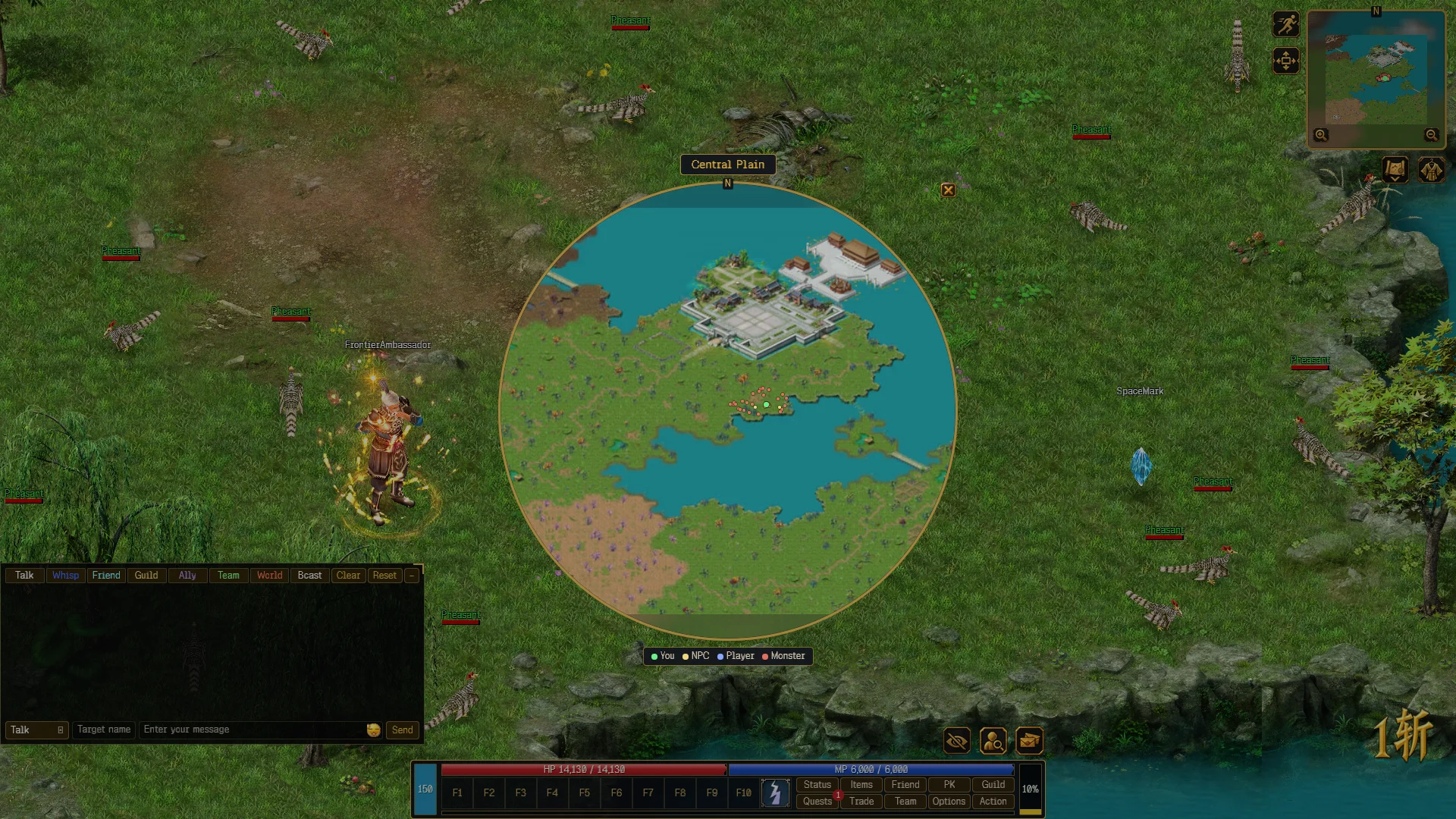
The minimap shows the map you are on, with markers for You, NPC, Player and Monster. The full-map overview adds the map name and, where there is one, the region name.
Hover its buttons for tooltips:
| Tooltip | What it does |
|---|---|
| Open map / Close map | Opens the full-map overview |
| Zoom in minimap / Zoom out minimap | Changes how much of the map the corner minimap shows |
| Hide minimap / Show minimap | Collapses the corner minimap to its buttons |
| Switch to walk / Switch to run | Toggles walking and running |
You start out running.
Status
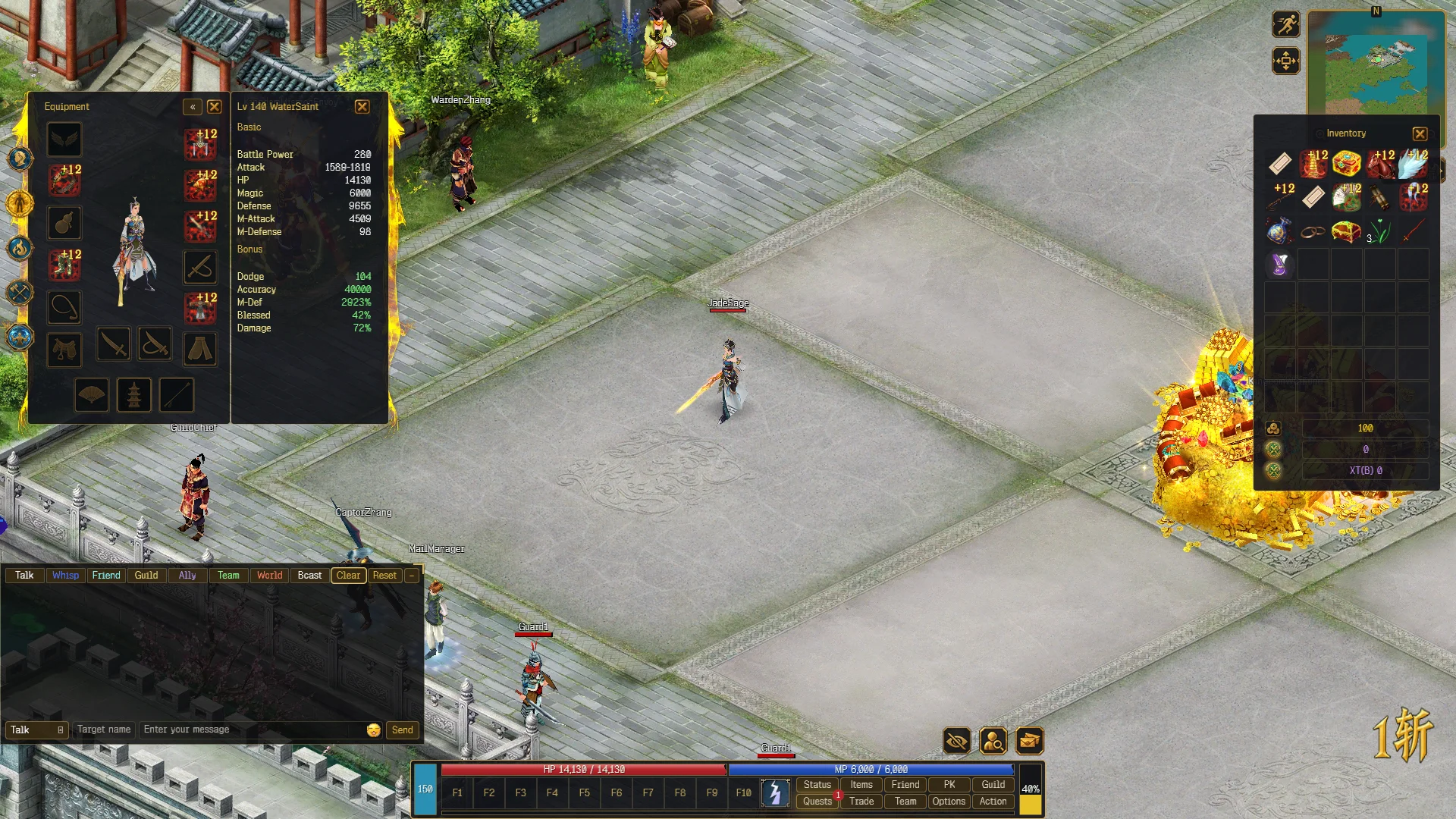
Press S or click Status. Tabs: Role, Equipment, Skill, Proficiency and Runes.
- Role shows Name, Level, Class, Reborns, PK Points, Guild and Spouse, and the four attributes: Strength, Agility, Vitality and Spirit. Spend unspent points with + and − (the Points left counter shows what you still have), then press Save. Reset clears your pending changes. The toggle on the window opens a detailed sheet with attack, defense, Dodge, Accuracy, Critical Strike and resist values.
- Equipment shows what you wear. Double-click or right-click an item to unequip it.
- Skill lists the spells you have learned. With none learned it says No spells learned.
- Proficiency lists weapon proficiencies. With none it says No weapon proficiencies.
- Runes is a placeholder, see Known issues.
If you wield a weapon in your left hand, you must unequip it before the right-hand one. The client tells you: Unequip your left-hand weapon first.
Items
Press I or click Items to open the bag. See Items for what you can do with them.
Skills
Right-click the active-skill slot (labelled SKILL while empty) to open the skill picker. Tabs filter your spells: All, Attack, AoE, Heal, Buff and Utility. Drag a spell onto a hotkey slot, or click it to make it your active skill. A right-click on the map casts the active skill. Drag the icon off the slot to clear it. See Combat.
Options
Open Options from the bottom bar. The sidebar has six pages.
| Page | What is on it |
|---|---|
| Interface | Language, GUI layout (Custom or Traditional), Menu buttons, Camera zoom, Text size, Buff icons, Boss life bar |
| Chat | Transparent chat, Broadcast messages, Center message position, size and color, Message colors |
| Display | Font, Health bars, Hotkeys, HUD info, Edit HUD, and the Graphics card: display mode, Map color, Shadows, anti-aliasing, Render scale, frame rate |
| Sound | Volume sliders for Game Effects and Game Music |
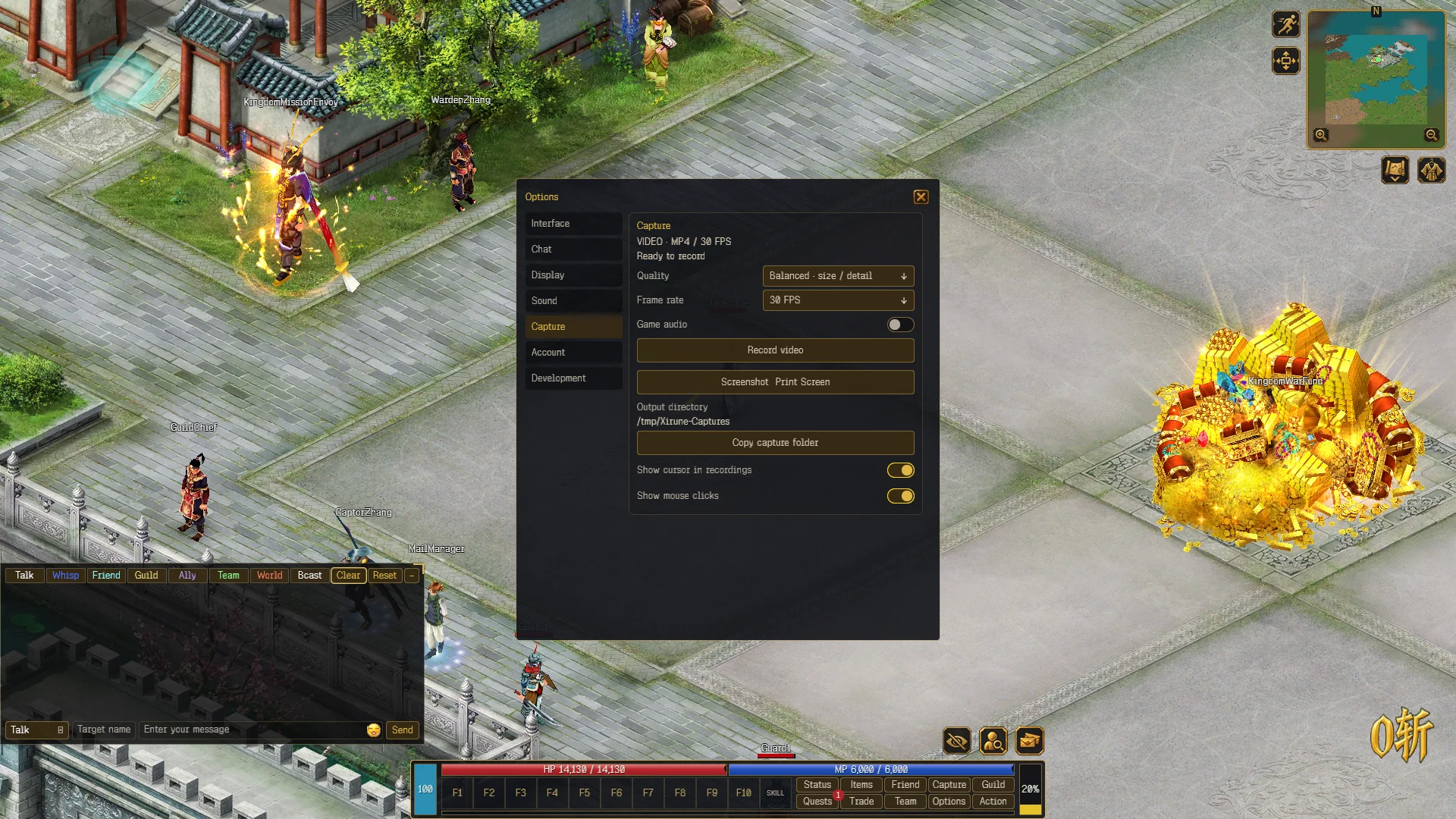
| Capture | Screenshot and video recording, and the capture folder |
| Account | Log out, Change account and Report bug |
Traditional layout pins the bottom bar to the screen edge and hides the menu buttons and the active-skill slot. With Custom, the Menu buttons switch shows or hides the menu buttons.
Capture
Screenshots (Ctrl + Alt + S, or Print Screen) and videos are saved to the Pictures\Xirune folder in your user folder. Copy capture folder copies that path.
Start and stop a video with Ctrl + Alt + R, or Record video in Options → Capture. Videos are MP4. While recording you can Pause and Resume, then Stop & save. Paused time is left out.
| Setting | Choices |
|---|---|
| Quality | Compact (smaller files), Balanced, High (more detail) |
| Frame rate | 15, 30 or 60 FPS |
| Record game audio | Adds the game sound to the video |
| Show cursor in recordings | Draws your mouse cursor into the video |
| Show mouse clicks | Blue circle for left clicks, red for right clicks |
Your own screen does not change when you turn the cursor or click marks on.
Languages
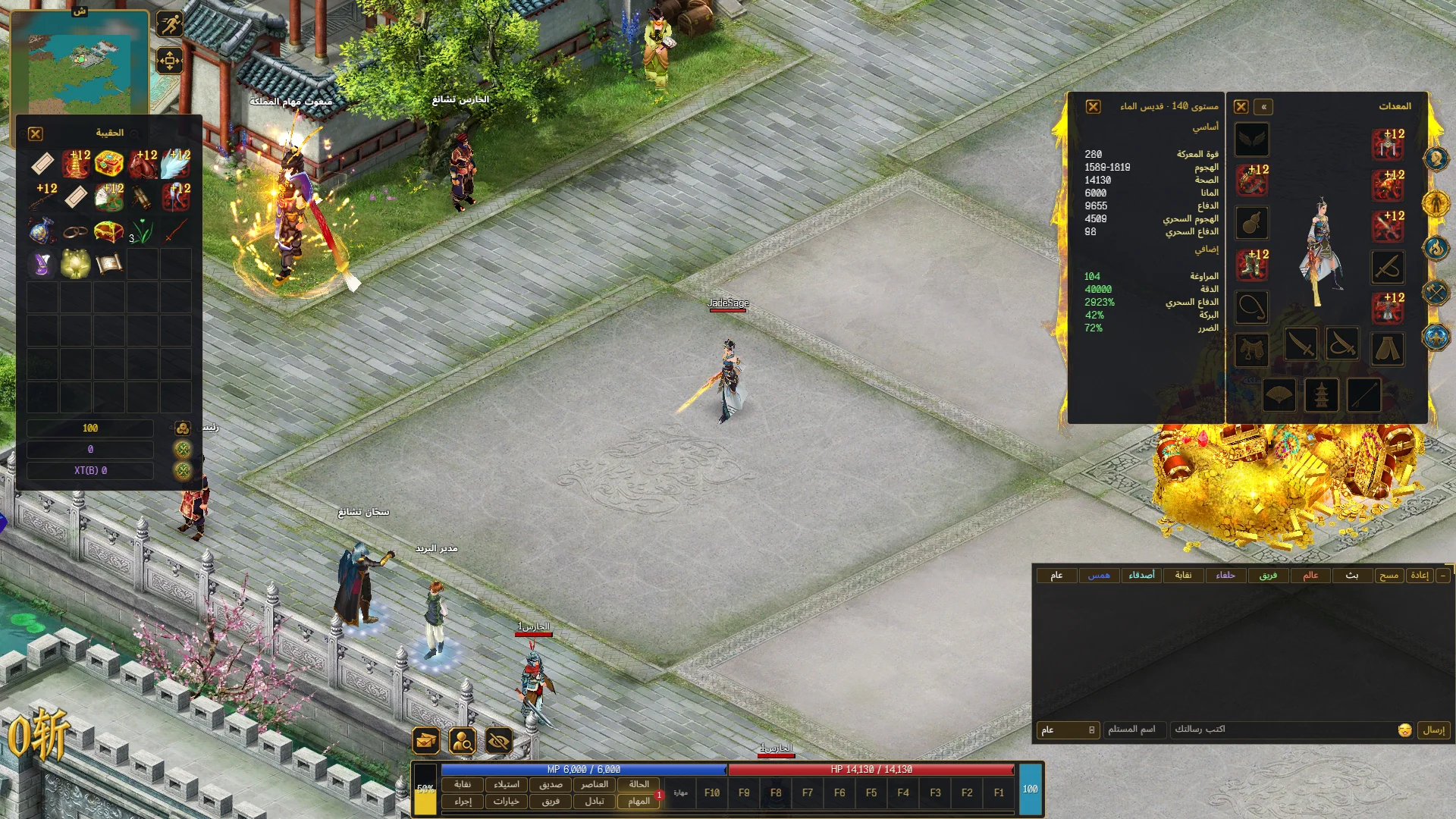
Xirune plays in English, Español, Français and العربية. Pick one in Options → Interface → Language. It changes at once, no restart. Names in the list stay in their own language.
Arabic is right-to-left. Windows and menus mirror, so the layout reads from the right. The game world and HUD frames keep their place on screen.
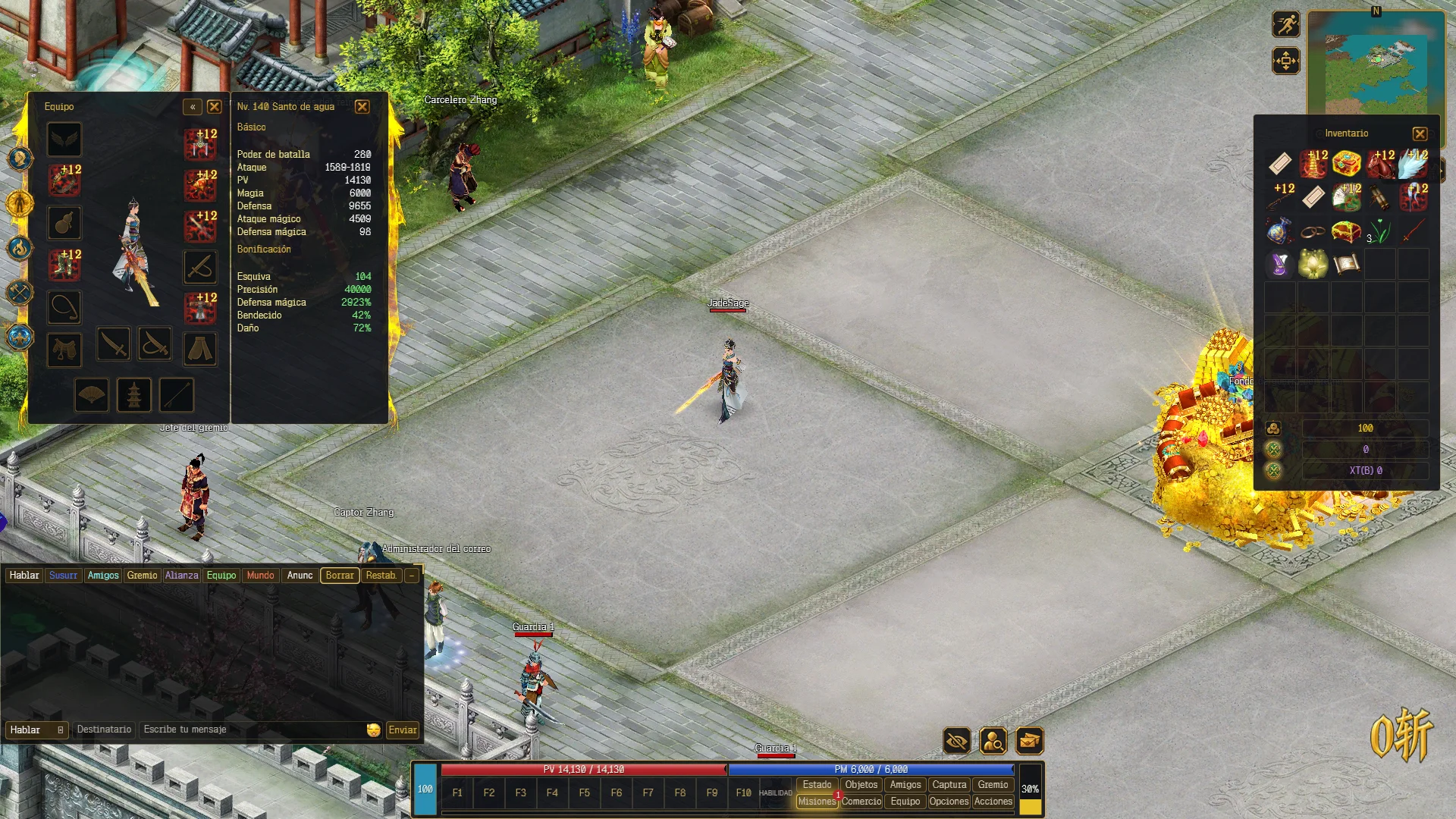
Not translated: player names, what players type in chat, and some server messages.
Edit HUD
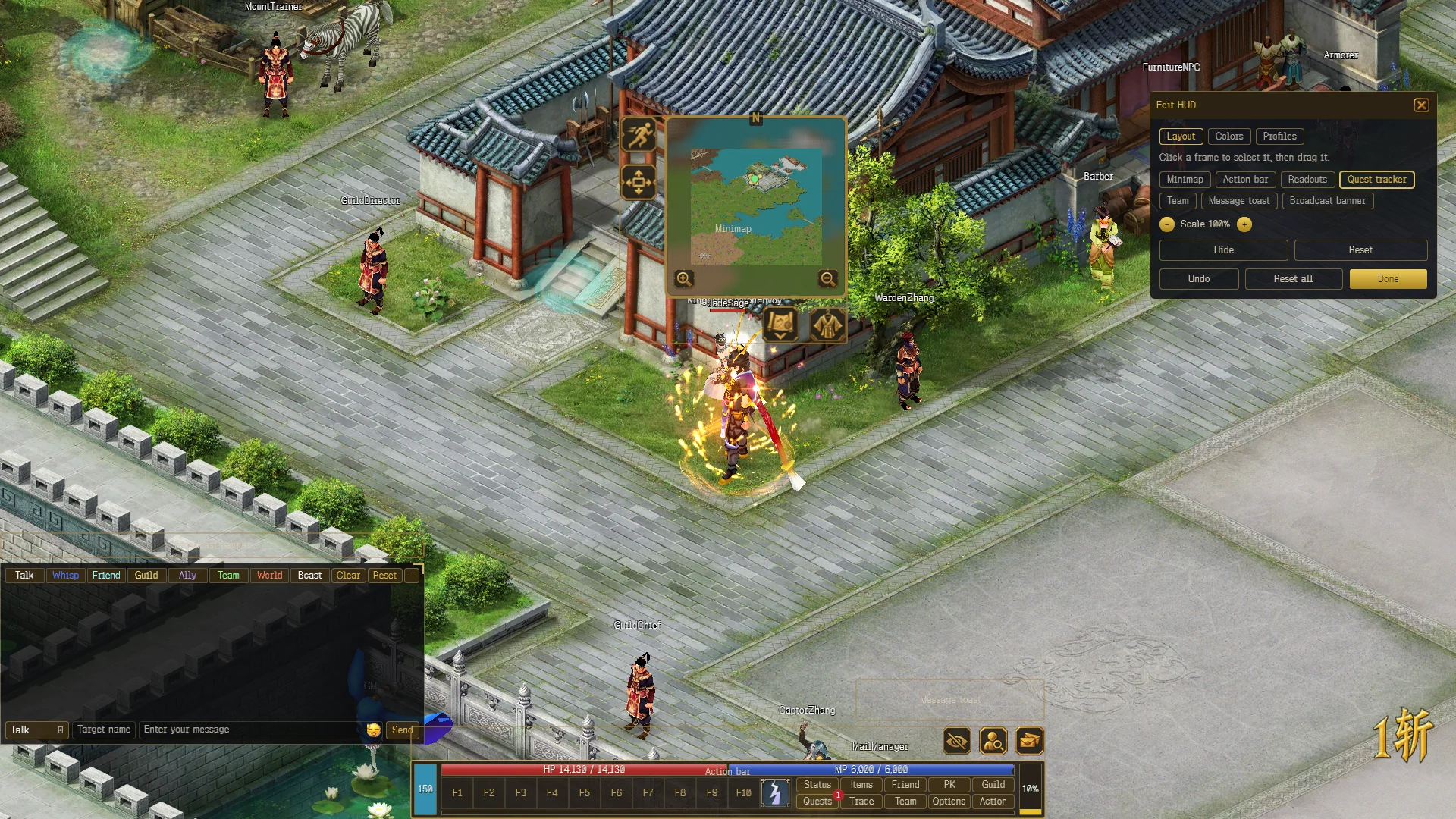
Options → Display → Edit HUD lets you move and resize the HUD.
- Click a frame to select it, then drag it. Frames: Minimap, Action bar, Readouts, Quest tracker, Team, Message toast and Broadcast banner.
- Scale goes from 60% to 150%. Hide and Show toggle the frame. Reset restores one frame and Reset all restores everything. Undo takes back your last change. Press Done when finished.
- Colors tab: five presets (Default, Ocean, Violet, Forest, Rose), or set Panel, Border, Heading, Text, Muted text and button colors yourself. The editor warns about Low contrast.
- Profiles tab: keep up to 6 layouts. Picking one applies it, and every change saves to it. New profile, Save (to rename) and Delete manage them.
Logging out
Options → Account → Log out returns you to the login screen. Change account signs in with a different account.