Getting started
Get into the closed beta: join the waitlist, install the Xirune launcher, download the game, create a character and enter EU-1.
This guide takes you from nothing to standing in the world. The closed beta is invite-only and Windows only for now. Linux and macOS come after the Open Beta.
1. Get access
- Create a Xirune account at id.xirune.com and join the waitlist on xirune.com.
- We invite players in small groups. When your account is invited, you get an email.
Anyone can install the launcher. Entering the world needs an invited account.
2. Install the launcher
- Download the installer from xirune.com/download. You need Windows 10 or 11, 64-bit.
- Run it. It installs for your Windows account and needs no administrator rights.
- Open Xirune.
The installer is not code-signed yet. If your browser or Windows warns about the file, the download page explains what to do and shows the SHA-256 so you can check it.
3. Sign in and download the game
- In the launcher, press SIGN IN. Your browser opens id.xirune.com to finish. No browser on this PC? Choose Use a code and finish on your phone.
- Press Install game. The launcher downloads and verifies the files. If your connection drops, it continues from where it stopped.
- Leave Auto-update on. The launcher downloads updates in the background and applies them once no game is running.
4. Enter the world
- Select the server, EU-1.
- Press ENTER WORLD. The game opens and connects.
If the launcher says Closed beta — invite only, your account has not been invited yet. If you were just invited, sign in again so the launcher picks up your access. If the game will not start after a patch, open the launcher and let it finish updating first.
5. Create your character
With no characters yet, the character screen shows a ring of seven classes: Ninja, Monk, Trojan, Warrior, Archer, Taoist and Pirate. Under each is a one-line description.
- Click a class, or press the Left and Right arrow keys, to bring it to the front.
- Press Create.
- Type a Name and choose Gender, Face, Hair style and Hair color.
- Press Create again.
An account holds up to ten characters. Once you have one, the ring shows your characters instead. Press Enter to play, New to add another character, or Delete to remove one. Back returns to your characters.
Messages you may see: Name already taken, Name has characters that are not allowed, That name is not allowed, Character limit reached.
Your new character starts on the Central Plain map. See Classes for what each class is like.
6. First steps
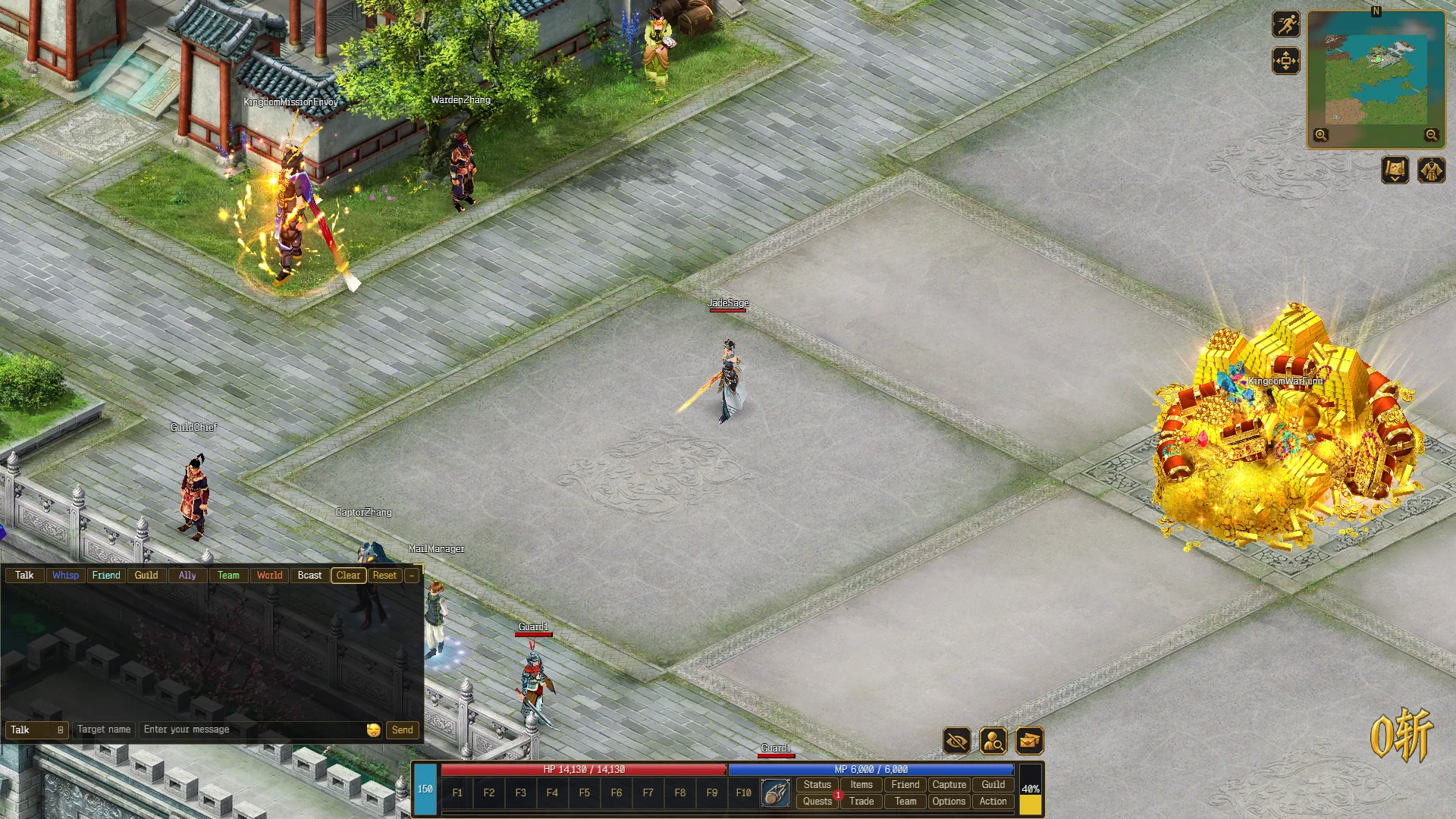
- Walk: left-click the ground.
- Fight: left-click a monster to attack it, then left-click what it drops to pick it up.
- Skills: right-click the SKILL slot in the bottom bar to open the skill picker, drag a skill onto an F1–F10 slot, and press the key. Right-click on the map to cast.
- Talk: left-click an NPC to open their dialogue.
- Menus: the bottom bar opens Status, Items, Friend, Guild, Quests, Team and Options.
- Language: Options → Interface → Language switches the game between English, Español, Français and العربية at once.
- Screenshots and video: Ctrl + Alt + S and Ctrl + Alt + R. See Interface.
Full lists are in Controls and Interface.
The launcher home screen
- WORLDS lists the servers with Online, Maintenance or Offline. The one you pick is remembered.
- NEWS & EVENTS shows the latest posts. Patch Notes opens the notes of the version you have installed, and Refresh news reloads the list.
Settings
Open Settings from the gear in the window header, or from the right-click menu of the home screen.
| Setting | What it does |
|---|---|
| Language | English, Español or Français. The game opens in the same language. Arabic is picked inside the game |
| Scene and Foreground character | The look of the home screen: Golden dusk or Moonlit city |
| Auto-update | Downloads and applies game updates in the background |
| Parallel downloads | Downloads several files at once. Turn it off on a slow connection or disk |
| Reopen game after a pending update applies | Starts the game again once an update finishes |
| Open logs directory | Opens the folder with the launcher’s log files |
The right-click menu of the home screen and the notification-area icon also offer Check for updates, Repair game files, Open game folder, Accounts and Sign out. Sign-out waits until no game of that account is running.
Something went wrong?
- Game will not start or an update failed: in the launcher, choose Repair game files from the menu on the Xirune icon in the notification area.
- Closed the launcher and cannot find it: it keeps running in the notification area. Look for the Xirune icon and choose Open Xirune.
- Anything else: see Known issues and Reporting bugs.